OpenRouter Setup
OpenRouter is the AI provider that VaultRAG uses to connect to models from OpenAI, Anthropic, Google, and more. This walkthrough covers how to create an account, configure your privacy settings, add credits, and generate an API key.
Step 1: Sign Up
Go to openrouter.ai and click the Sign Up button in the top right corner.
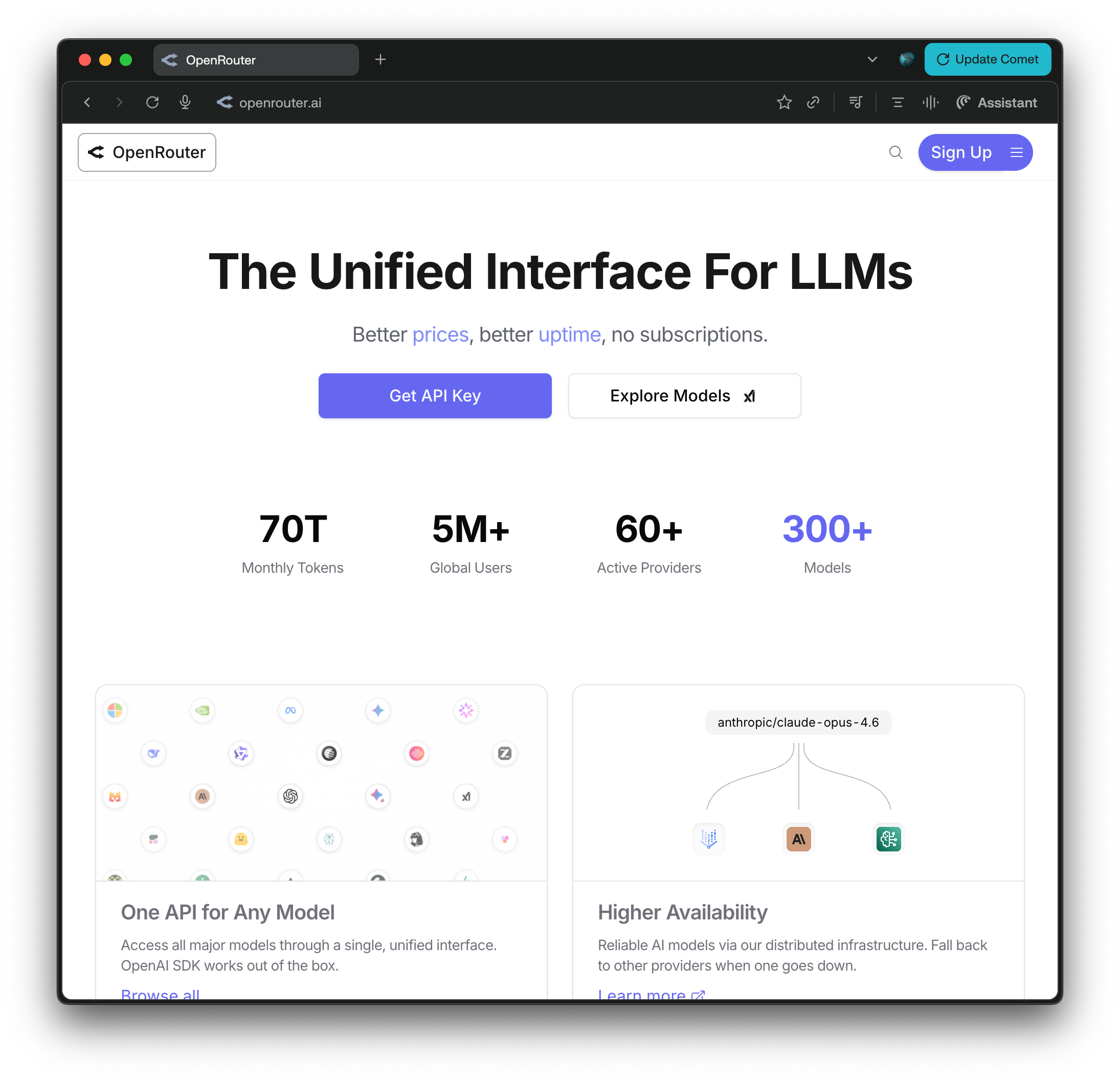
Step 2: Open Settings
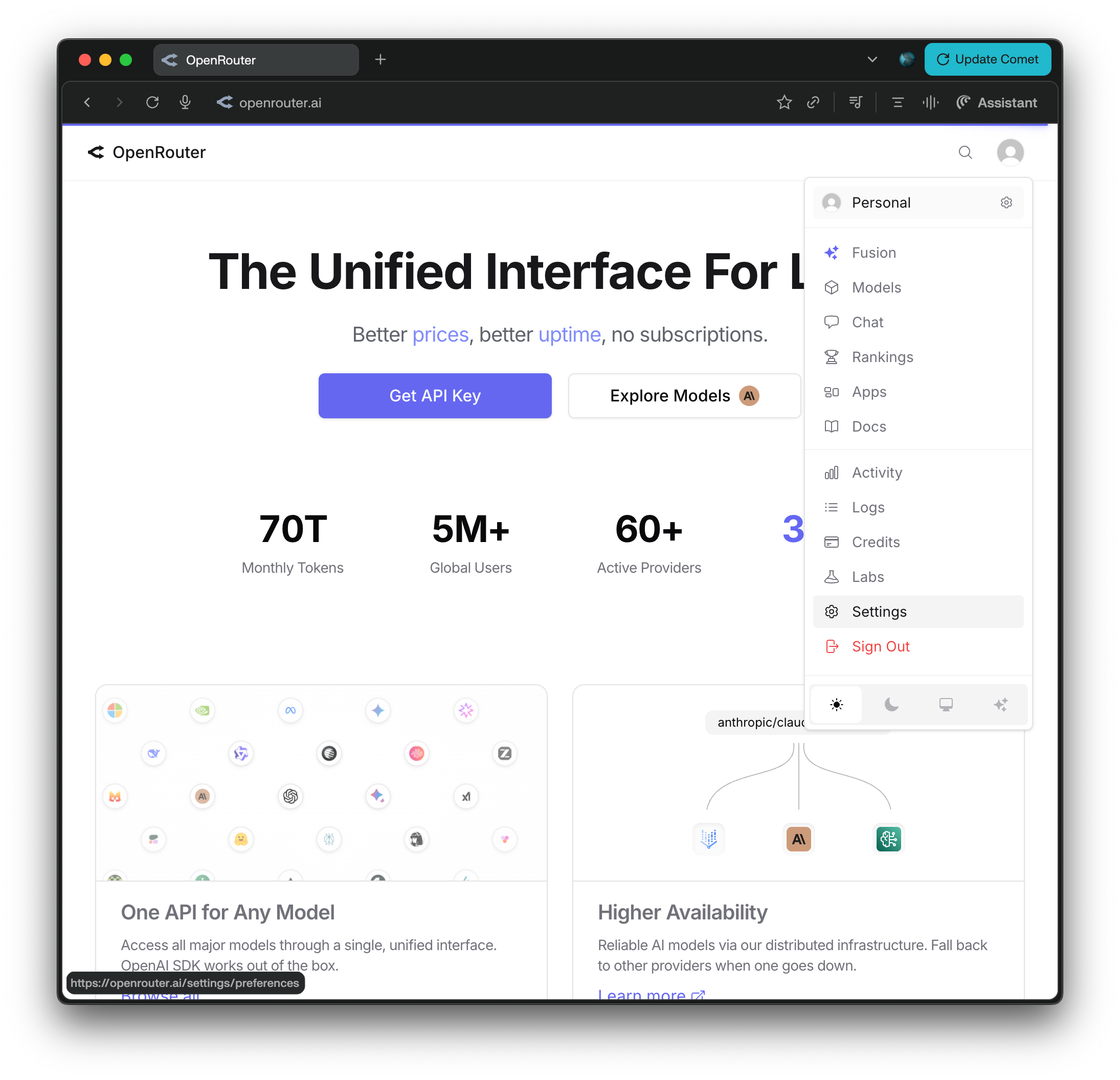
Click the settings icon to open your account settings. This is where you will configure your privacy preferences.
Step 3: Configure Guardrails
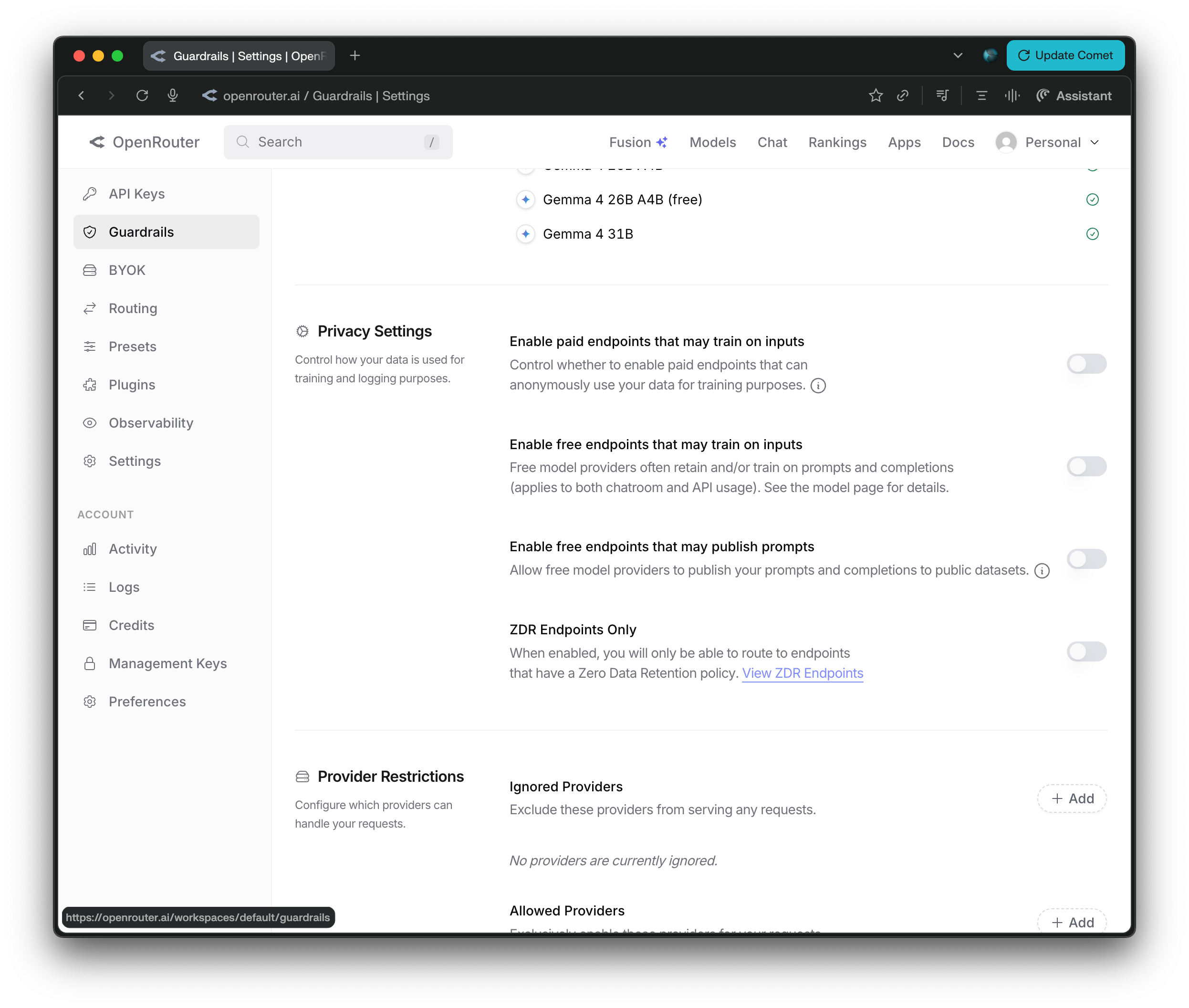
Navigate to Settings > Guardrails. Under Privacy Settings, you will see four toggles that control how your data is used for training and logging purposes:
- Enable paid endpoints that may train on inputs: Controls whether paid endpoints can anonymously use your data for training purposes. We recommend turning this off.
- Enable free endpoints that may train on inputs: Free model providers often retain and/or train on prompts and completions. We recommend turning this off.
- Enable free endpoints that may publish prompts: Allows free model providers to publish your prompts and completions to public datasets. We recommend turning this off.
- ZDR Endpoints Only: When enabled, you will only be able to route to endpoints that have a Zero Data Retention policy. We recommend turning this on for maximum privacy.
For the best privacy, disable the first three toggles and enable ZDR Endpoints Only.
Step 4: Add Credits
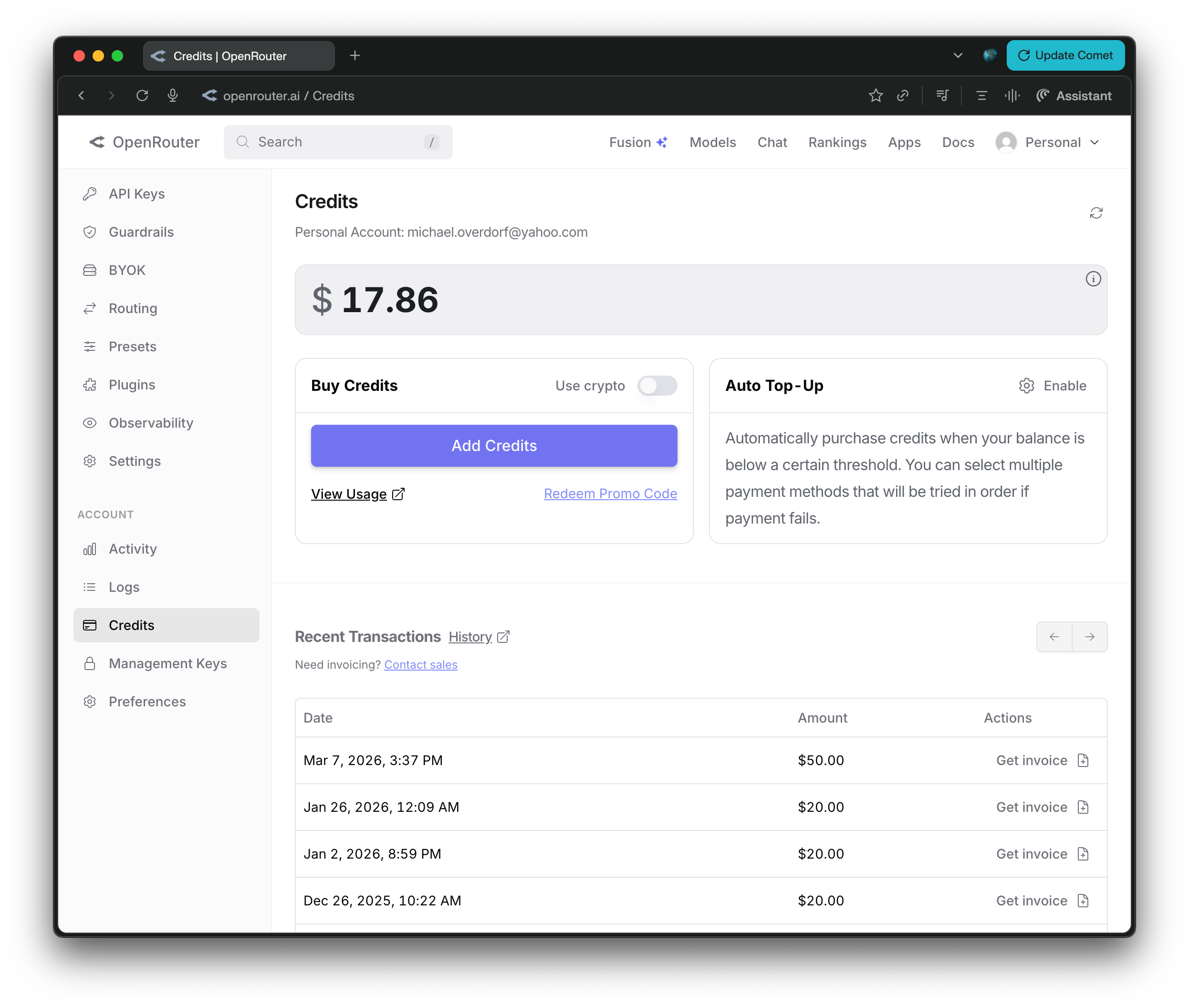
Navigate to the Credits section to add funds to your account. OpenRouter uses a pay-as-you-go model where you only pay for the tokens you use. A small amount like $5 or $10 is enough to get started and will last a while for typical usage.
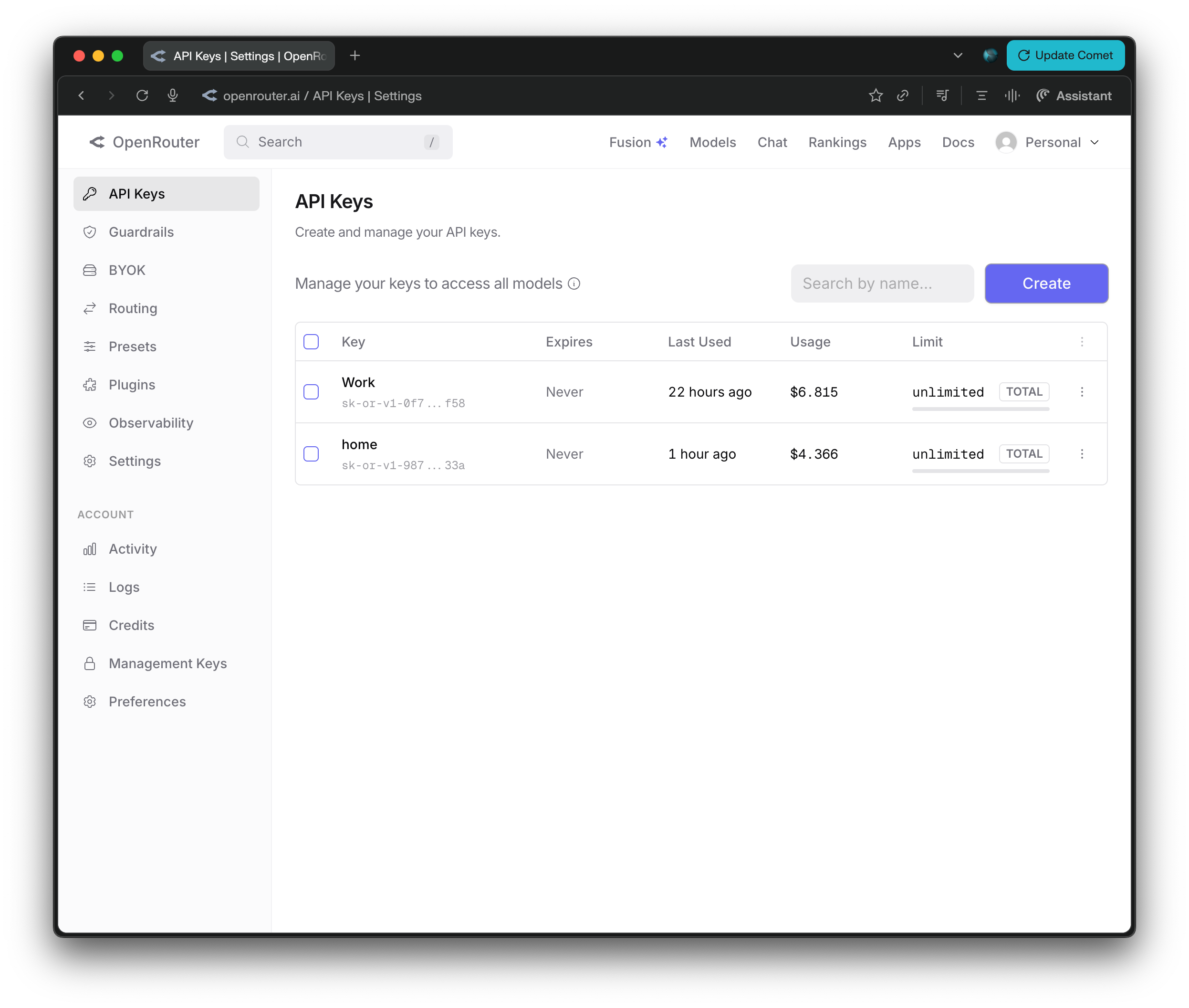
Step 5: Navigate to API Keys
Go to the Keys section from the sidebar or account menu. This is where you will create the API key that VaultRAG needs to connect to OpenRouter.
Step 6: Create an API Key
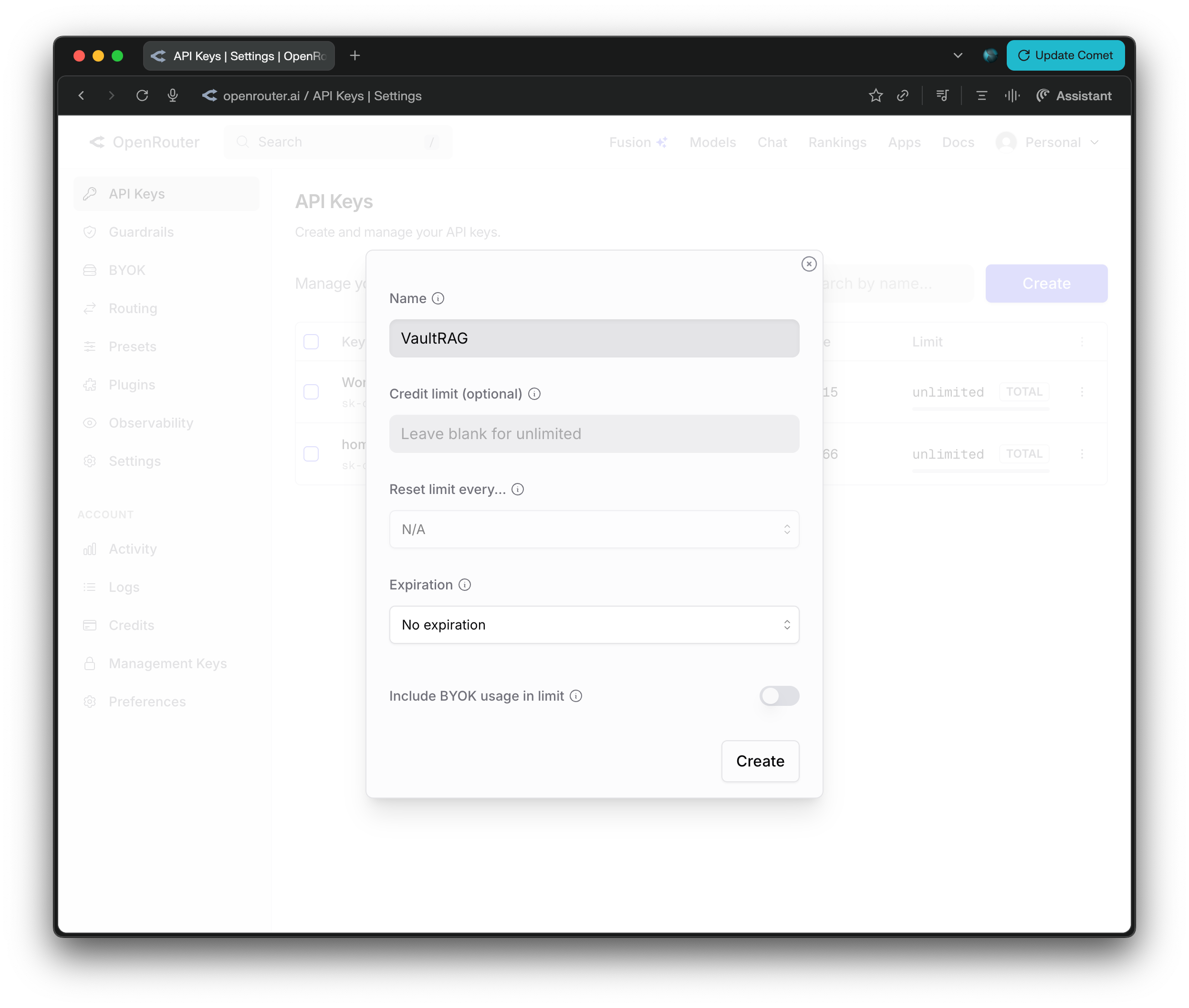
Click Create Key to generate a new API key. Give it a name like "VaultRAG" so you can identify it later.
Step 7: Copy Your Key
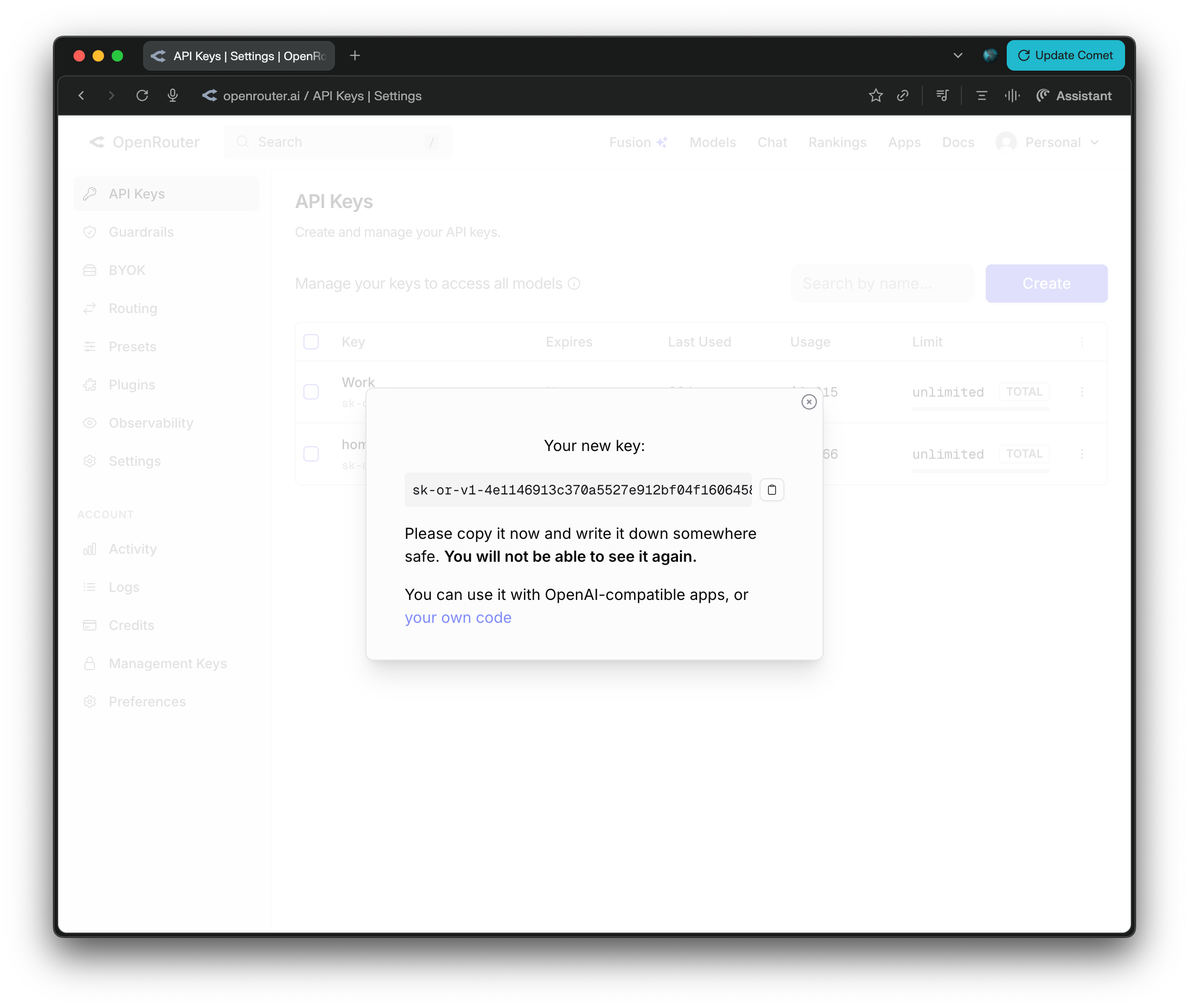
Your new API key will be displayed. Copy it immediately as it will only be shown once. Keep it somewhere safe so you can paste it during the VaultRAG setup process.
Getting Started
VaultRAG is a desktop application for managing and querying your files using retrieval-augmented generation. Connect to leading AI models, index your documents, and get grounded answers with citations.
When you first launch VaultRAG, a setup wizard will walk you through the initial configuration. This guide explains each step.
Step 1: License Activation
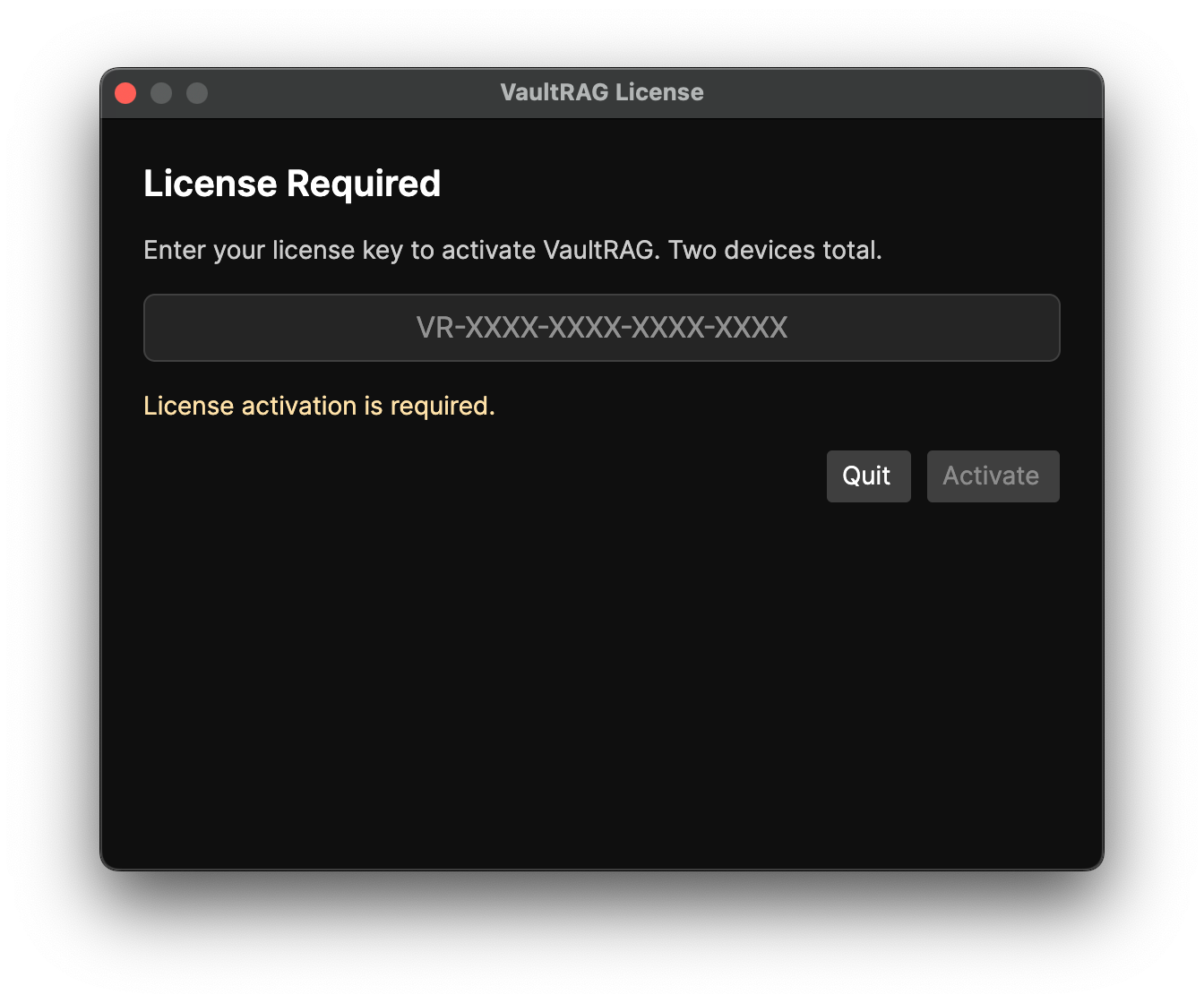
The first time you open VaultRAG, you will be prompted to enter your
license key. This is the key you received by email after your purchase,
in the format VR-XXXX-XXXX-XXXX-XXXX.
Paste your license key into the field and click Activate. Your license allows activation on up to two devices.
Step 2: Choose Your Vault Folder
Your vault folder is the directory that VaultRAG will monitor and index. Any files you place inside this folder will be read and processed by AI so you can search and ask questions about them.
We recommend creating a new, dedicated folder for your vault (for example,
Documents/VaultRAG). This is not strictly required — you can
point VaultRAG at an existing folder — but a dedicated folder gives you
clear control over what gets indexed.
Important: All files in your vault folder will be indexed and read by AI models. What that means for your privacy depends on the AI setup you choose in the next step:
- Cloud AI: the text of your documents is sent to your configured cloud provider to be processed. Do not place sensitive personal information (tax documents, passwords, medical records, etc.) in this folder unless you are comfortable with that data leaving your computer.
- Local AI: models run entirely on your own computer, so your documents are never sent anywhere — nothing leaves your machine. If you run local-only, it is much safer to index sensitive personal files.
If you are mixing both (Cloud + local), assume anything that can be handled by a cloud model may be sent to that provider, so treat your vault the same way you would for Cloud AI.
You can click Browse... to select a folder, or type a path directly. This can be changed later in Settings.

Step 3: Choose Your AI Setup
VaultRAG powers its chat, search, and indexing features with AI models, and you choose where those models run. There are three options:
- Cloud AI: Runs chat and embeddings on hosted models through OpenRouter, plus any coding agents you have installed. This is the best quality and the fastest to set up, but your prompts and the document text used to answer them are sent to the provider you choose. Cloud AI requires an OpenRouter API key.
- Local AI: Runs models entirely on this computer. Nothing leaves your machine, so it is the most private option, though quality and speed depend on your hardware. Local AI does not require an API key. Coding agents can still be turned on.
- Cloud + local: OpenRouter for chat, local models where you prefer them, and you choose which side handles embeddings, so you can balance quality against privacy.
- Skip AI setup: finish now and configure AI later in Settings.
Pick the option that fits your needs and click Next. You can change this later in Settings. Every option except Skip continues to the Providers and Agents page; Local AI and Cloud + local add Local AI setup; and all of them end with the Document Search page. The wizard has 6 to 9 steps depending on this choice.

Step 4: Connect Your AI Providers
This page appears for every AI setup except Skip. It has two parts: the OpenRouter card, shown when you chose Cloud AI or Cloud + local, and the coding agents list, shown always.
OpenRouter
Paste your OpenRouter API key — if you don't have one yet, see the
OpenRouter Setup section of this guide. Click
Test to verify VaultRAG can reach OpenRouter, then
Load models to fetch the available models and pick your
Chat model. This is the main model that answers your questions;
we recommend anthropic/claude-sonnet-4.6.
Note: only certain models can read images. If you need the chat
to parse screenshots, photos, or diagrams in your vault, use a vision-capable
model like anthropic/claude-sonnet-4.6 or openai/gpt-5.5.
The embedding model and the optional summary model are chosen on the Document Search page, so there is one place that decides which model indexes your vault.
Coding agents
Below OpenRouter, VaultRAG lists the coding agents it can drive from chat: Claude Code, Codex, OpenCode, Goose, and Hermes Agent. These are command-line tools you install and sign in to yourself; VaultRAG never handles their credentials. The first time the page opens it checks every agent and shows the result on each row:
- Ready (v1.2.3, logged in) — installed and signed in.
- Installed (v1.2.3). Its login is verified on your first chat. — installed; Claude Code and the ACP agents check their login lazily.
-
Installed but not logged in — followed by the exact terminal
command that signs you in, such as
codex loginoropencode auth login. - Not installed — followed by where to get it. The row's toggle is switched off so the agent does not appear in the chat picker.
Each row has a toggle that decides whether the agent is offered in chat, and a Check button that re-runs the check after you install or sign in. A toggle you set yourself is never overridden by a check. At the bottom, Default for new chats picks what a new conversation starts with: VaultRAG's own chat, or any agent that is switched on and installed. You can switch backends in any chat at any time.
Step 5: Local AI Setup
If you chose Local AI or Cloud + local, this step sets up models that run entirely on your computer. It has two parts: starting the local runtime and choosing your models, and installing the models that fit your hardware.
Runtime and model selection
VaultRAG runs a small local runtime that hosts your models on this computer. Use Start LocalAI to launch it and Refresh to update its status; when it is ready, the screen shows that the runtime is running.
The Minutes idle before unloading field controls how long loaded
models stay in memory after you stop using them. Set it to 0 to keep
your selected local models loaded until you stop the runtime or unload them
manually. Loading models keeps later queries fast; if they are not loaded, the
first local query may be slower while the model session opens.
Under Selected local models, choose a Chat model. The embedding model and the optional summary model are picked on the next page, Document Search, so there is one place that decides which model runs. Everything can be changed later in Settings.

Installing local models
Below the selectors, the Install local models list shows the models you can download to this computer. Each entry lists its size, a short description, and what it can be used for (for example, embedding, main chat, summary, tools, or reasoning).
Pay attention to each model's memory requirement. Models that need more RAM than your computer has are marked Blocked and cannot be installed, so pick models that fit the amount of memory your machine reports.

Step 6: Document Search
VaultRAG indexes your vault so that chat can pull in the right passages. This page decides what gets embedded and the one model that does it.
Text to embed
Controls what is turned into vectors when your files are indexed. On a fresh install Chunks (hybrid search) is preselected:
- Chunks (hybrid search) — recommended: each document is split into passages. Every passage is keyword-searchable and a spread of passages per document gets semantic vectors, so answers can be found deep inside long files. No summary model is needed, and the passage index builds quietly in the background. A live preview shows how documents of different lengths split, and the chunk size, chunk caps, and adaptive sizing can be tuned here or later in Settings.
-
AI summary: VaultRAG first uses the summary model to write a
short summary of each document, then embeds that summary. Strong relevance for
mixed vaults, but it needs a summary/chat model and one AI call per document.
When this mode is selected, a Summary model picker appears; we
recommend
inception/mercury-2on OpenRouter, or a fast local model. - Document text: embeds the document text directly (very long files are truncated). No summary model needed; simplest and cheapest.
Embedding model
The embedding model turns text into the vectors used for search, at index time and for every question. Exactly one picker is shown so there is never any doubt about which model runs:
-
Cloud AI: the OpenRouter embedding model. We recommend
perplexity/pplx-embed-v1-0.6b. If you have not loaded models yet, a Load models button on this page fetches the list. - Local AI: the local embedding model you installed on the previous page. If none is installed yet, the page says so and search stays keyword-only until you install one.
- Cloud + local: a toggle reads Local AI embeds your documents or OpenRouter embeds your documents and swaps the picker. Local is the private default; flip it if you would rather use a cloud embedding model. Document text is only sent to OpenRouter when the toggle says so.
One embedding model serves the whole vault. Changing it later re-embeds every document.
Step 7: Global Hotkey
VaultRAG can be opened from anywhere on your computer using a global keyboard
shortcut. The default is Cmd+Shift+Space on Mac. Click the field
and press your preferred key combination to change it.
This lets you quickly pull up VaultRAG to ask a question without switching windows or finding the app in your dock.
Window control buttons
This screen also has a Show window control buttons option. These are the close, hide, and fullscreen buttons in the title bar. VaultRAG hides them by default for a cleaner, command-palette style window — with them off, use the global hotkey to hide or show VaultRAG. You can turn the buttons back on later in Settings > General.
macOS permissions
On macOS, global hotkeys require Accessibility permissions. If the hotkey does not work after setup, go to System Settings > Privacy & Security > Accessibility and make sure VaultRAG is listed and enabled. You may need to click the lock icon and add VaultRAG manually if it does not appear.
Troubleshooting
If you previously installed VaultRAG, you may need to remove it from the Accessibility list and add it again. Open System Settings > Privacy & Security > Accessibility, select VaultRAG, click the minus button to remove it, then click the plus button to add it back. You must restart VaultRAG after making these changes for them to take effect.

Step 8: Web Search (Optional)
VaultRAG can optionally search the web during chat to supplement your vault documents with live web results. When enabled, you can toggle web search on or off in the chat interface.
Whether you need a key here depends on your AI setup:
- OpenRouter (Cloud AI): web search works out of the box using OpenRouter's built-in search. A Tavily key is optional and lets you pick Tavily as an alternative search provider.
- Local AI: a Tavily key is required for web search, since local providers don't include a search backend.
This step is entirely optional. If you do not need web search, leave the field blank and click Next. You can always add a Tavily key later in Settings.
Getting a Tavily API Key
To enable web search, you need a free API key from Tavily. Follow these steps:
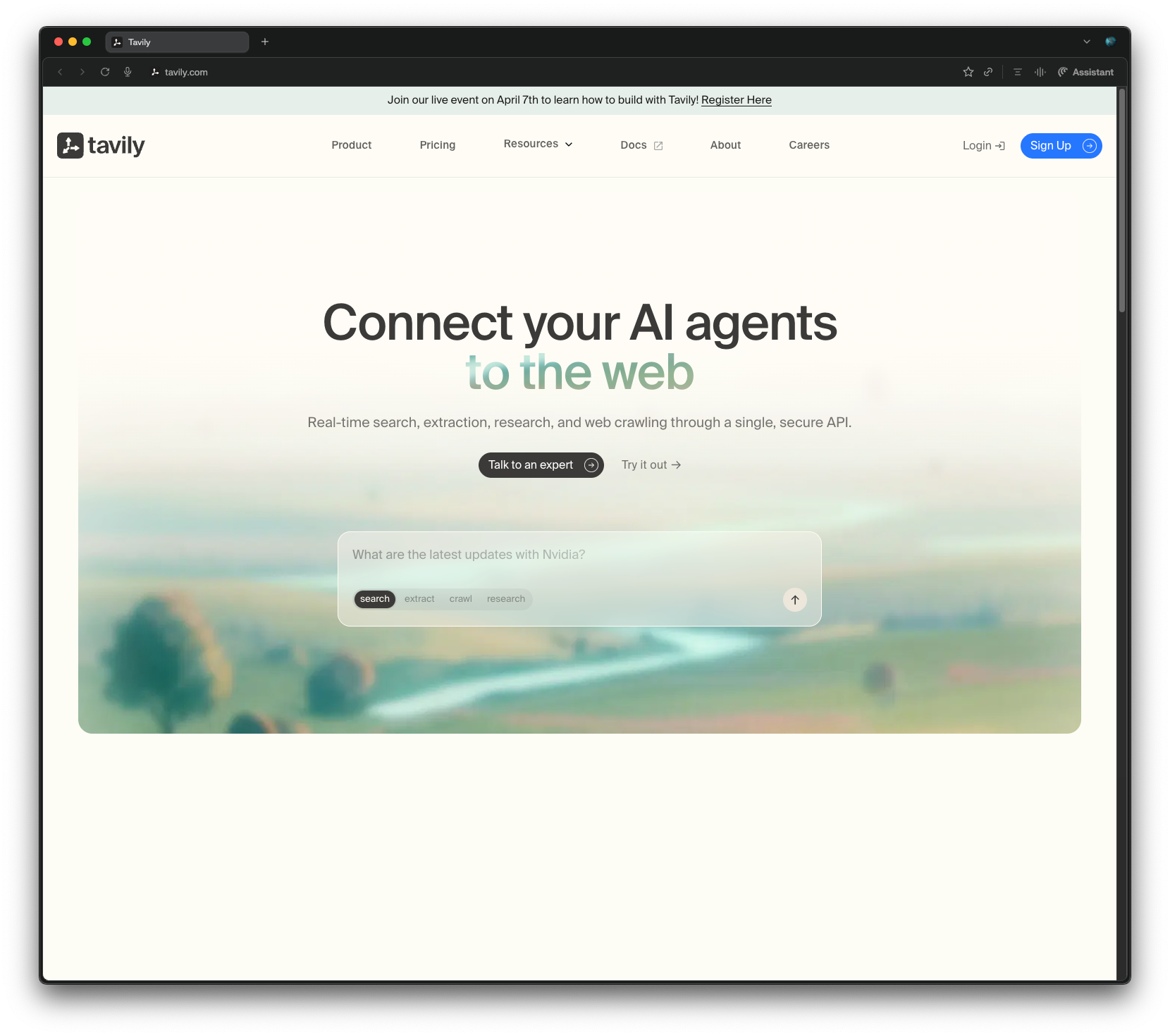
1. Visit Tavily
Go to tavily.com. Tavily is a search API designed specifically for AI applications, providing clean, structured results optimized for LLM consumption.
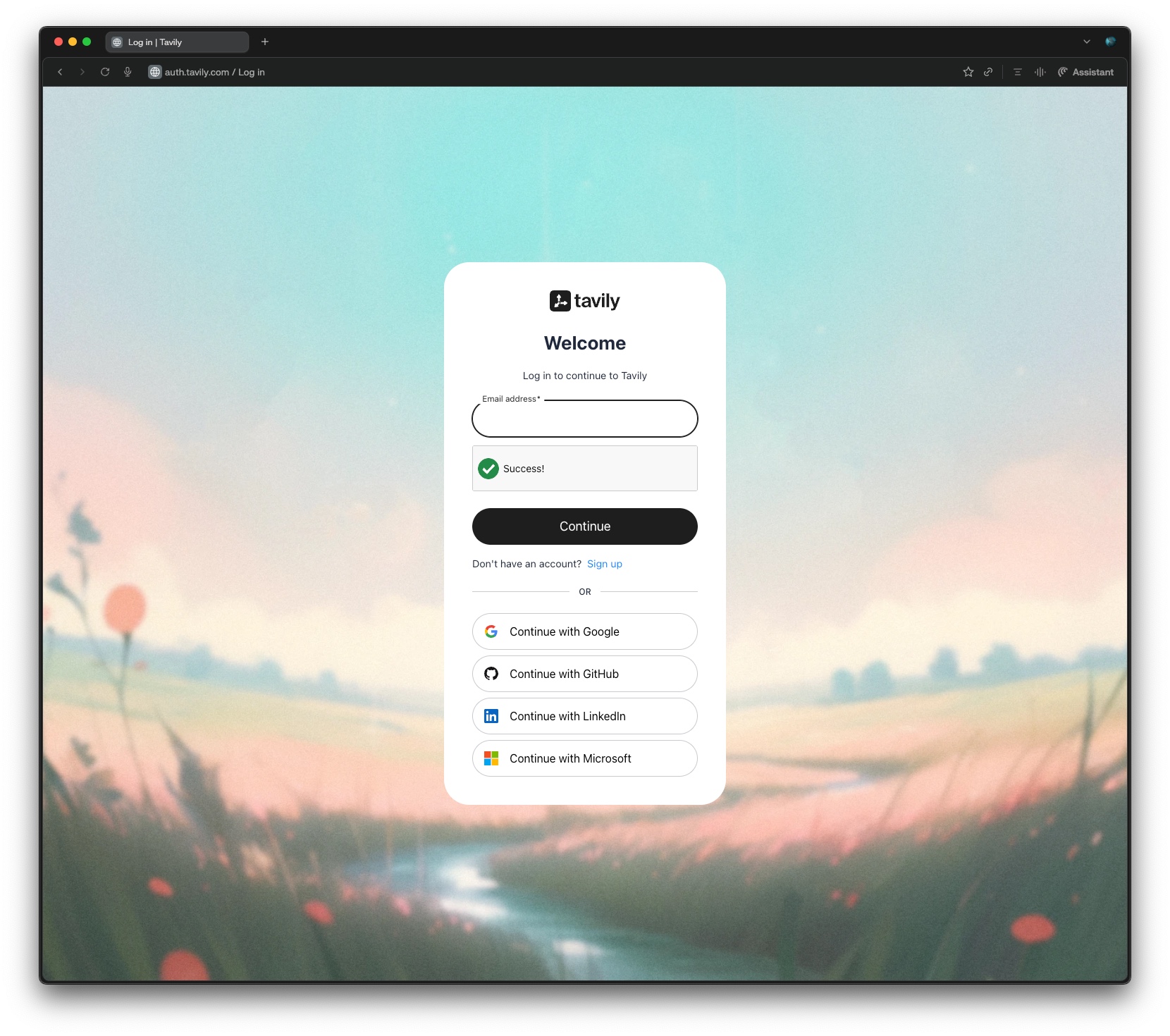
2. Create an Account
Click the small Sign Up link underneath the Continue button to create a free account.
3. Create an API Key
After signing in, you will be taken to the Tavily dashboard. Click the + button to the right of API Keys to create a new API key. The free tier includes 1,000 API calls per month, which is more than enough for typical use.

4. Name Your API Key
Give your API key a name. Any name is fine.

5. Copy Your API Key
Click the copy button next to your API key to copy it to your clipboard.

Once you have your API key, paste it into the Tavily field in VaultRAG and you are all set. You can test the connection in Settings > AI at any time.

Step 9: Finishing Up
The final step confirms that setup is complete and gives you a few tips to get started:
- Type
helpin the main window to see available commands and shortcuts, andhelp <topic>for one feature in depth. - Use the Settings menu to update your providers, API keys, models, and vault location at any time.
- Only files inside your vault folder are indexed for search.
Click Finish to close the setup wizard and start using VaultRAG. All of these settings can be changed later from the Settings menu inside the app.

Enable macOS permissions for the launch shortcut
On macOS, VaultRAG asks for Accessibility and Input Monitoring permissions so the global launch shortcut can bring VaultRAG to the front from any app. Most in-app shortcuts work without these permissions, but the global launch shortcut needs them to listen for your key combination while another app is active.
When macOS shows the permission prompt, click Open System Settings. In Privacy & Security > Accessibility, turn on VaultRAG. macOS may ask for your password or Touch ID to confirm the change.
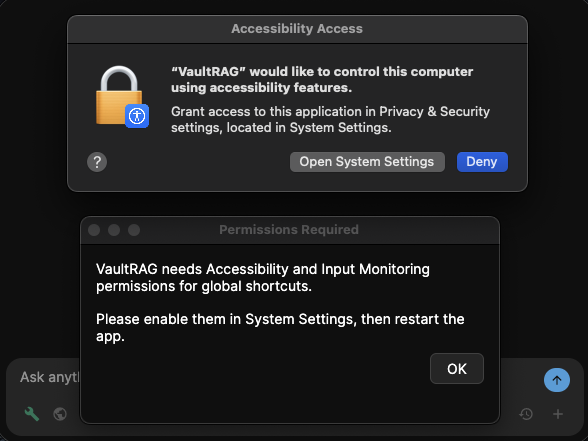
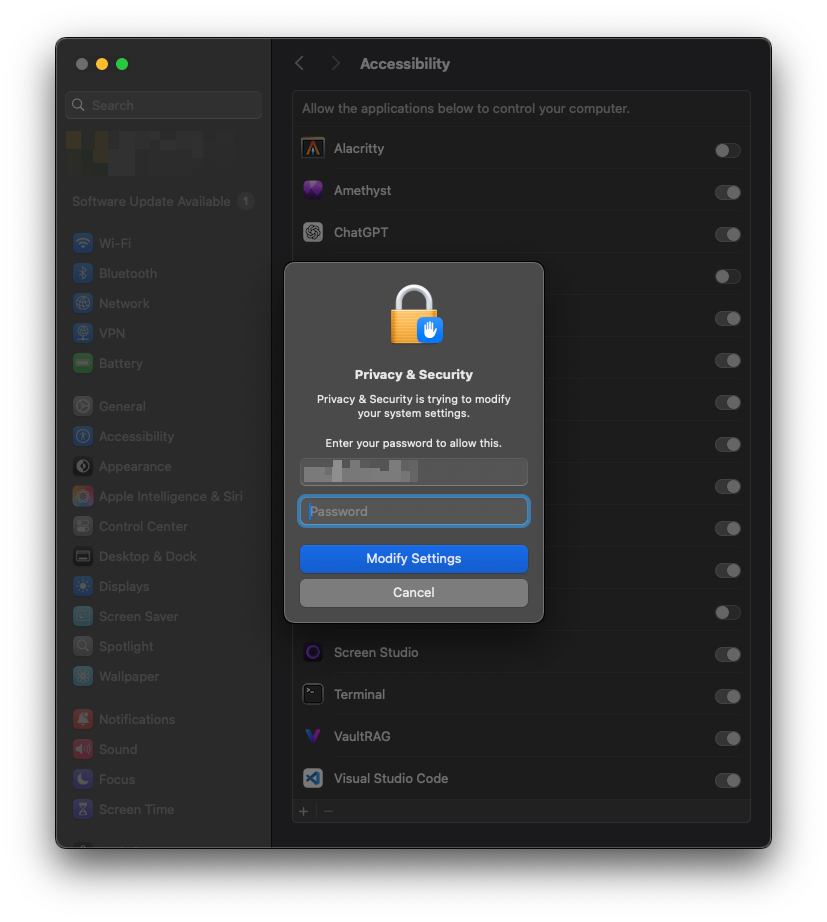
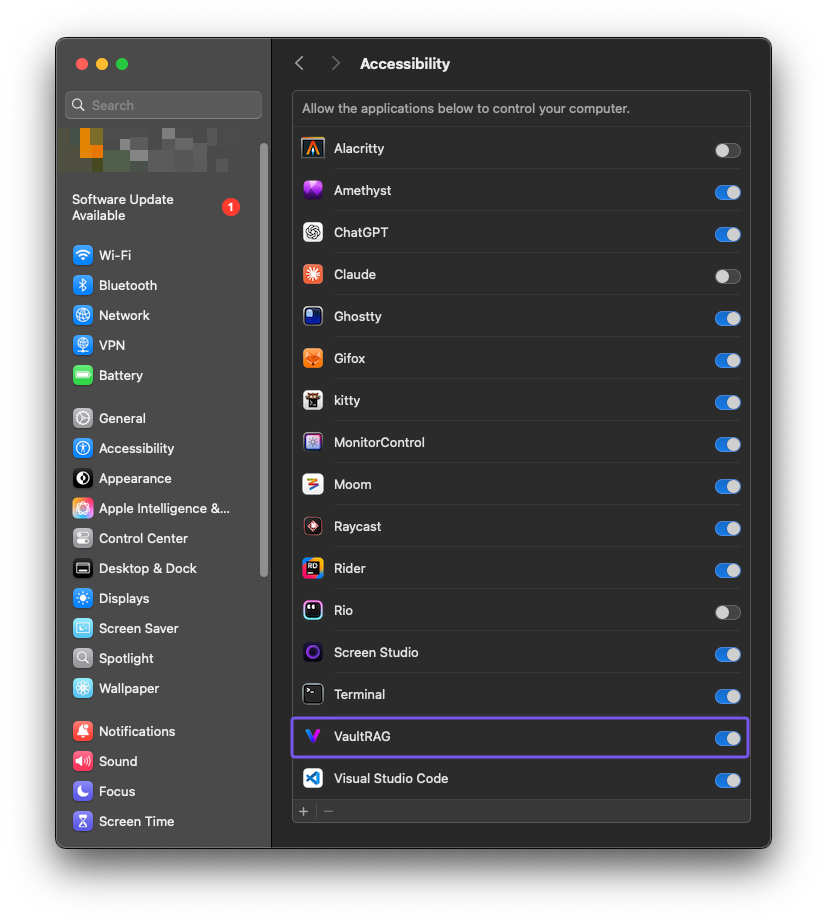
If the launch shortcut still does not bring VaultRAG to the front, also open Privacy & Security > Input Monitoring and enable VaultRAG there as well, then restart the app.
Once setup is complete, you can navigate VaultRAG using simple text commands.
Type help in the chat to show the help guide with all available
commands and keyboard shortcuts. Type vault to open the vault
browser, or press Tab to switch between Chat, Vault, and
Analytics views. Type analytics to view your usage statistics,
git to open the Git view, or settings to open the
settings panel.

Settings
The Settings panel lets you adjust VaultRAG's configuration at any time.
Open it by typing settings in the chat. Settings are organized
across seven tabs: General, AI, Local AI, Search, Files, Plugins, and About.
Git has its own settings panel inside the Git view, and remote control and
scheduled jobs have their own panes (/remote-control and
/cron).
General
The General tab covers your vault location, appearance, global hotkey, database maintenance, and vault statistics.

Vault Path
The root folder that VaultRAG indexes and searches. Every file inside this folder (and all of its subfolders) becomes part of your vault and is made searchable by name, content, and AI-generated embeddings. Click Browse... to select a new directory or type a path directly. When you change the vault location, the index will be rebuilt automatically against the new folder.
Recommended: create a dedicated folder just for VaultRAG,
for example ~/VaultRAG on macOS/Linux or
C:\Users\<you>\VaultRAG on Windows, and point the vault
path at that folder. Move or copy in only the documents you actually want
indexed. This keeps the vault focused, makes indexing faster, and gives you
a clean spot to back up or sync.
You can set the vault path to a broad location like your home directory, Documents folder, or an entire drive, but it is not recommended. VaultRAG will try to index everything it can reach underneath that path, including application data, caches, downloads, and other files you probably do not want to search. The result is a much larger index, slower scans and embedding runs, higher disk and memory use, and noisier search results.
Warning: Avoid pointing the vault at system folders (such
as /, /System, C:\Windows,
Program Files, or hidden config directories like
~/Library or AppData). Use a folder you own and
control, and ideally one you can back up on its own.
Appearance
The Appearance section controls how the VaultRAG window looks and behaves:
- Show window control buttons (close, hide, fullscreen): toggles the platform-native window buttons in the title bar. When enabled, macOS shows the standard traffic-light buttons and Windows shows its standard minimize, maximize, and close controls. When disabled, VaultRAG hides them for a cleaner, more minimal title bar; you can still show or hide the window using your global hotkey.
- Center main window when app launches or is shown by shortcut: when enabled, VaultRAG positions the main window in the middle of the screen each time the app starts or the global shortcut brings it forward.
- Minimal mode: hides extra chat chrome, tightens chat spacing, and makes the chat and vault surfaces more transparent for a more compact, distraction-free look.
- Theme and Font: choose from 74 built-in themes (Dark, Light, Catppuccin, Dracula, Nord, Tokyo Night, GitHub, and more) and pick the interface font: Default, the bundled JetBrains Mono, or any family installed in your operating system's font store (Font Book on macOS, Fonts on Windows), previewed in its own face. Both take effect immediately.
Global Hotkey
Launches VaultRAG from anywhere on your system. Click the field and press your preferred key combination to change it. On macOS, you need to grant VaultRAG permission under System Settings > Privacy & Security > Accessibility and Input Monitoring for the hotkey to work. Restart the app after changing these permissions.
Database Maintenance
Three tools to manage the vault's internal database:
- Verify checks the database against disk without making changes and produces a graded report: one headline, then sections for files and documents, folders, summaries and embeddings, and the chunk index. Lines marked ⚠ are structural problems Repair fixes; lines marked ▸ are pending work that Generate Summaries or the background indexer will finish.
- Repair syncs the database with the current state of files on disk, adding missing files and removing deleted entries while preserving existing AI-generated data, including the chunk index; new documents are queued for chunking in the background.
- Rebuild performs a full clean and rebuilds the database from scratch.
Warning: Rebuild erases all AI-generated data including embeddings, summaries, and relationships. Only use it if Repair does not resolve the issue or you want a fresh start.
Vault Statistics
A snapshot of your vault showing embedding cache size, document count, categories, indexed folders, relationships, graph database size, and embedding dimensions. Click Refresh to update after making changes.
AI
The AI tab is where you configure your models and how VaultRAG uses them. It covers your cloud provider, the chat and embedding models, how search is tuned, local AI (models that run on your own computer), and web search. The same models you picked during setup can be changed here at any time.
Cloud provider and API key
Choose your Cloud Provider (OpenRouter) and paste your Cloud API Key. Cloud models only appear after a key is configured. If you run local AI instead, you do not need a key here — local models appear in the pickers once the LocalAI runtime is running.

Main model
The Main Model is what answers your questions in chat. Click Details to see its context window, max output, and pricing. Use Temperature to control how deterministic responses are (lower is more focused, higher is more creative) and Max Output Tokens to cap the length of a response. Test Connection verifies VaultRAG can reach the model.
Embedding model and source
The Embedding Model turns text into the vectors used for search. The Embedding Source controls what gets embedded:
- Chunks (hybrid search): splits each document into passages; every passage is keyword-searchable and a spread of passages per document gets semantic vectors. The recommended default; chunk size, caps, and adaptive sizing live on the Search tab with a live chunking preview and a chunk map.
- AI summary: VaultRAG generates a short summary of each document with the summary model, then embeds that summary. Best search quality for mixed vaults, but it requires a summary/chat model.
- Document text: embeds the document text directly. Faster, especially with local models, and does not use the summary model.
The Summary Model is the optional model used to write those per-document summaries. Pick a faster, cheaper, or local model for this task.
Search tuning
These settings control how strict and how broad vault search is. They are advanced and the defaults work well, but you can adjust them if search returns too few or too many results.

- Similarity Threshold: the minimum similarity score a result must meet. Lower returns more results, higher means stricter matching.
- Dynamic Threshold: when enabled, if no results are found VaultRAG progressively lowers the threshold until results are found or the minimum is reached.
- Minimum Threshold, Decrement Percentage, and Max Tries: the lowest threshold to try before falling back to text search, how much to lower the threshold each attempt, and the maximum number of attempts.
- Max Search Results: the maximum number of results returned from embedding search, which also limits how many are sent to the AI model. Set to 0 for unlimited.
Local AI
These controls now live on their own Local AI tab; the descriptions below still apply. VaultRAG can run models entirely on your own computer so nothing leaves your machine. The setup wizard's Local AI page picks the chat and embedding models that fit this computer; the tab below is where you manage the runtime and the installed models afterwards.

LocalAI runtime
Use Start, Stop, and Restart
to control the local runtime. When it is running, your installed local models
become available in the model pickers above. The panel shows the runtime state,
its local address, capabilities (chat, summaries, embeddings), and where models
are stored. Minutes idle before unloading controls how long
models stay in memory after use; set it to 0 to keep them loaded
until you stop the runtime or use Unload Models Now.
Advanced performance
The Advanced Performance options tune the local runtime's launch settings for your hardware. On Windows NVIDIA systems you can install the CUDA Runtime for GPU acceleration. Model Storage sets where helper models are downloaded. The Performance preset (Auto recommended) fills in the launch fields for you, and you can override individual values such as context size, GPU layers, batch and micro-batch size, flash attention, and KV cache types. Changes take effect after you unload or restart LocalAI. If a setting causes startup problems, return the preset to Auto and reset the numeric fields to their defaults.
Local models
The LocalAI Models list is where you install models to this computer and then select them in the pickers above. Each entry shows its size, what it can be used for (chat, summary, tools, reasoning, long context), and its format. Badges tell you whether a model is already Installed and whether it Fits this computer; models that need more memory than you have are flagged with a memory-risk warning. Use Install, Remove, and Details to manage them, and Refresh List to update the catalog.

Web Search
Choose how VaultRAG performs live internet lookups when web search is enabled in chat. The Web Search Provider can be Tavily or, for OpenRouter chat models, OpenRouter's own server-side web search. Tavily works with both local and cloud models that support tool calling, and is required for web search when you run local AI, since local providers do not include a search backend.
Get a free Tavily API key at tavily.com, paste it into Tavily API Key, and click Test Tavily to verify the connection. Search Depth chooses between basic (faster) and advanced (deeper crawling), and Max Results sets how many web results to return per search (Tavily is capped at 20; OpenRouter allows up to 25).
Local AI
Local AI has its own tab. It holds the LocalAI Runtime controls (start, stop, restart, idle unload, and the advanced performance options such as CUDA on Windows, model storage, and the launch preset) and the LocalAI Models catalog where you install and remove models. The details of each are described under AI > Local AI below; only their location moved.
Search
The Search tab (formerly Indexing) holds the embedding card, the chunking settings with their live preview and the Open Chunk Map button, how VaultRAG generates summaries, and the summary prompts. System prompts live on the AI tab.

Summary Settings
Toggle Automatically Generate Summary When Adding Files to have summaries created with AI as soon as files are added to the vault; disable it if you prefer to index files manually later. The remaining options tune summary generation:
- Max Summary Source Characters: the maximum number of characters read from each document when generating a summary. Higher values can improve summaries but use more tokens. This does not limit indexed file size or how much is sent to the model during chat.
- Parallel Summary Generation: how many documents are summarized at once during bulk imports (1–10). Higher is faster but may hit API rate limits.
- Request Timeout (minutes): how long to wait for an LLM request before giving up (1–90). Increase it for deep-research models or complex tasks.
System Prompts
Manage the saved system prompts that guide how the AI responds during chat. Built-in prompts are updated automatically, while custom prompts you create are preserved. Use New, Duplicate, and Delete to manage them, or Reset to Default to restore the built-in version.
Summary Prompts
Manage the saved prompts used when generating document summaries. This controls what the AI focuses on when summarizing your files, and works the same way as system prompts — built-in prompts update automatically and your custom ones are preserved.
Files
The Files tab controls how files are handled when added to the vault and lets you define ignore rules and custom file type mappings.

Add Behavior
Toggle Move files into the vault when adding to control whether Add Document and Add Folder move items into the vault folder, or leave them in their original location and copy them in.
File Ignore Rules
Define patterns to exclude files and folders from the vault database entirely
— they will not appear in the vault browser, search, or chat. Each rule has
a pattern and a match type: Starts With (for prefixes like
~$), Ends With (for extensions like
.tmp), Contains, or Equals (for
specific directories like node_modules). Use
Reset to Defaults to restore the built-in rules.
File Type Mappings
Extensions listed here are treated as text files, so source code and other
text-based files can be parsed and indexed. Enter an extension (for example
.py, .go, or .rs) and click
Add. Reset to Defaults and
Clear All manage the list.
Plugins
The Plugins tab is where everything that extends the chat lives: the coding agents and the tool plugins.
Agent Integrations
One row per agent — Claude Code, Codex, OpenCode, and under Other agents (Agent Client Protocol) the Goose and Hermes Agent presets plus any custom ACP command you add — with an enable toggle and a status line that says whether the CLI is installed and signed in, and the exact terminal command to fix it if not. Further options cover Share vault with agents (the read-only search server agents use), which agent models are hidden from the picker, memory files, shell permissions, the sandboxed run_command tool for the built-in chat and its skip-approval setting, and Full access, which skips permission checks for agent sessions entirely.
Tool Plugins
Drop a built plugin folder (its plugin.json, DLL, and dependencies)
under the plugins directory shown here, click Reload Plugins, and
it appears in the Installed Plugins list with its load status;
failures show the error inline. Once loaded, a plugin's tools are available in any
chat, listed with the built-in ones. The developer guide in the SDK has the contract,
a complete minimal example, and a checklist.
About
The About tab shows the current version of VaultRAG and provides access to the EULA, update checks, and troubleshooting tools.

EULA
View the End User License Agreement and notices.
Check for Updates
Click to check whether a newer version of VaultRAG is available.
Troubleshooting
Open the log folder to access diagnostic logs. Useful if you need to report an issue or debug unexpected behavior.
Chat
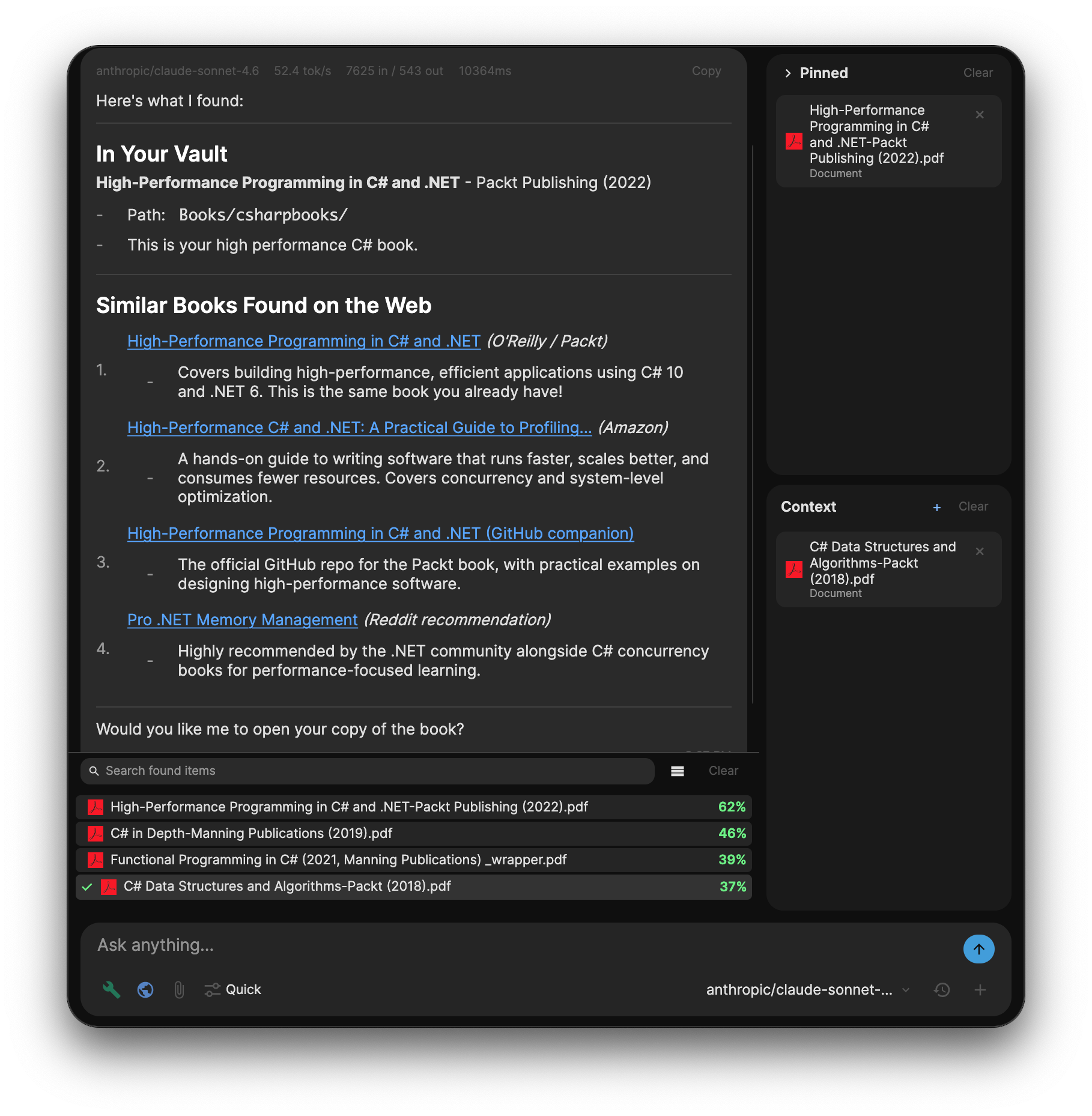
The chat interface is where you ask questions, search your vault, and interact with AI. Results from your vault and the web are displayed inline alongside the AI's response.
Vault Search Results
When you ask a question, VaultRAG searches your indexed documents and returns relevant matches under In Your Vault. Each result shows the document name, match score, and a link to open the file.
Web Search Results
If web search is enabled, the AI can also pull in live results from the internet. These appear under Best Books Available (Web Results) or similar headings depending on your query, giving you both local and online sources in one response.
Pinned Documents
Pin documents to the right sidebar so they stay accessible across your conversation. Pinned documents remain in context as you ask follow-up questions, making it easy to work through a set of files throughout the day.
Context Panel
The context section on the right shows documents currently loaded into the conversation. This gives you visibility into exactly what the AI is referencing when it answers your questions.
Chat Input
The input bar at the bottom includes controls for toggling web search, attaching files, viewing conversation history, selecting your AI model or agent backend, and starting a new conversation.
Tabs and Pop-out Windows
Open a new conversation tab with Cmd+T (Ctrl+T on Windows); the tab strip appears once you have more than one conversation, and each tab keeps its own model, backend, and streaming state. Any conversation can be popped out into its own window for side-by-side work, and closing a pop-out re-docks it as a tab.
Conversation History
The history overlay searches across the content of past conversations, not just their titles. Pin important conversations, rename or delete them, and use the colored chips on each row to spot its model, agent backend, and project folder at a glance.
Slash Commands and Plain Words
Type / to see every command the current backend understands, with
autocomplete. In the built-in chat: /status (provider, model, tools,
folder), /model [name], /context (what fills the context
window), /usage (with a 12-month activity heatmap),
/compact [focus], /diff, /review,
/init, /research, /goal,
/web on|off, /tools on|off, /new, and
/clear. On every backend: /git, /remote-control,
/cron, and help. Plain words work too: vault,
settings, analytics, and git open the views
they name.
The wrench next to the input toggles Tool Calling: green means the model decides which tools to use and reads documents on demand; grey is faster, uses pre-built context, and runs a plain message as a direct vault search. The globe lets the model use the web. Ask to plot, chart, or graph numbers and the reply renders an interactive chart.
Working Folder and File Tools
Every conversation has a working folder where the model's files live. By default it is a private per-conversation workspace that VaultRAG manages; the folder control next to the input points the conversation at one of your real project folders instead, and on the phone you can browse the whole disk. With a project folder selected, the model reads and writes your actual files, and coding agents run there.
The built-in chat's file tools — read, write, edit, list, glob, grep, and
outline — stay jailed to that folder. Tool activity shows as cards in the
reply: diffs for edits, previews for writes, the command line for shell runs.
An opt-in run_command tool (Settings > Plugins) runs commands
in the working folder; on macOS it runs inside the system sandbox with writes
jailed to that folder and the network blocked, and every command asks for approval
unless you enable the skip-approval setting. Files persist across turns, so "fix
the second column" works. /init writes an AGENTS.md contributor guide
for a project.
Deep Research and Goals
/research <question> plans several searches, sweeps the vault
— and the web when the globe is on — over two rounds, reviews the
findings for gaps, and writes a report with numbered citations and a Sources
section. Every document it touched appears in the Found Items panel. It runs in
the built-in chat and in Codex and OpenCode conversations; with Claude Code it
forwards to the CLI's own research skill.
/goal <condition> tells the built-in chat to keep working, turn
after turn, until a check agrees the condition holds ("all tests pass", "the
report has a Sources section"). /goal shows the current goal and its
status; /goal clear stops it.
The Help Guide
help opens an overview with the commands, getting-started steps, and
the list of topics; help <topic> opens one feature in depth
— help git, help remote-control,
help cron, help agents, help tools,
help shortcuts, help local-ai, and more. The same guide
is available from the phone.
Forking a Conversation
Open the same conversation twice and the second copy becomes a fork: it keeps the history, the backend, and the project folder, and when the backend is Claude Code the agent session is branched too, so both conversations continue independently without corrupting each other.
Agents
VaultRAG can hand chat turns to a coding agent running on your own machine. Three backends are built in: Claude Code (Anthropic), Codex (OpenAI), and OpenCode (open source), and any agent that speaks the Agent Client Protocol can be added, with presets for Goose and Hermes Agent. Pick one from the same picker you use to choose a model and the conversation runs through the real agent CLI, with live streaming, tool cards, and colored file diffs rendered in the chat.
Setup and Login
VaultRAG uses the agent CLIs you already have installed and never handles your credentials. Install and sign in from your own terminal:
-
Claude Code: install the
claudeCLI, runclaudein a terminal, then/loginwith your Claude account. -
Codex: install the
codexCLI and runcodex loginwith your ChatGPT account. -
OpenCode: install the
opencodeCLI and runopencode auth login, or let it use the OpenRouter key you already configured in VaultRAG Settings. -
Goose, Hermes Agent, and other ACP agents: install the agent
and sign in the way its docs describe (
goose configure,hermes model), then switch it on in the setup wizard or Settings.
The setup wizard and the picker show each backend's install and login status, and if something is missing they tell you the exact terminal command to fix it. Your existing Claude or ChatGPT subscription covers the usage; VaultRAG adds no key handling and no markup.
Each backend also exposes its own controls in the picker: the agent
model (Codex lists are fetched live from your account; Claude Code
offers its current lineup), a six-level thinking-effort setting, and
for Claude Code an optional 1M-token context window; OpenCode exposes its
thinking variants and ACP agents their own models and modes. Set them from
the picker or with /model, /effort, and Codex
/fast. The chat's web globe governs whether agents may access the
web.
Goose, Hermes Agent, and Other ACP Agents
Beyond the three built-in backends, VaultRAG can drive any agent that speaks the Agent Client Protocol (ACP), the editor-agent protocol used by JetBrains and Zed. Presets exist for Goose (Block's open-source agent) and Hermes Agent (Nous Research's agent harness), and any other ACP command can be added as a custom agent under Settings > Plugins > Agent Integrations > Other agents. All ACP agents are off by default; switch one on in the setup wizard or in Settings and it appears in the chat picker under its own name.
ACP agents sign in their own way (goose configure,
hermes model, and so on) and run on whichever provider you configured
in them. VaultRAG starts the agent's process once, learns its commands, models and
modes so they appear in the picker and the / autocomplete, resumes
sessions per conversation, attaches the read-only vault search server when the
agent supports it, and routes its permission requests to the same approval card as
the other agents. When an agent's provider rejects a request, the reply names the
sign-in step that fixes it.
Vault Access
With Share vault with agents enabled in Settings, agents can search your vault through a built-in MCP server: semantic document search, passage search, document content, outlines, vault structure, recent documents, and indexed folders. The server is read-only, reachable only from your own machine, and protected by a per-session token, so agents can look things up but can never modify your files through it. When an agent searches your vault, it can surface the results in the Found Documents panel just like native chat.
Supervised Approvals
Agents run supervised by default. Any action outside the safe allowlist, such as running a shell command or editing a file, pauses on an approval card in the chat with three choices: Allow, Allow for this conversation, or Deny. Requests time out to Deny if you ignore them.
For trusted work, Settings offers a Full access toggle that skips permission checks entirely for agent sessions. Use it deliberately: in full-access mode the agent can run commands and edit files without asking.
Project Folders
Every conversation has its own working directory. By default agents work in a jailed per-conversation sandbox; the folder chip next to the picker lets you choose any folder instead, such as a code repository or a folder of documents. Reopening a conversation restores its project folder, backend, and agent session, so long-running work picks up where it left off. History rows show a badge with each conversation's project name.
Slash Commands
Type / in the input to autocomplete the active backend's
commands. Claude Code offers built-ins like /compact,
/cost, /todos, and /usage,
merged with your own custom commands from
~/.claude/commands and the project's
.claude/commands. Codex picks up your prompts from
~/.codex/prompts, including argument substitution, and
OpenCode and ACP agents contribute their own commands. VaultRAG adds
/clear, /effort, /model, Codex
/fast, and on every backend /git,
/cron, /remote-control, and /help <topic>.
/usage renders as a dedicated panel with per-limit progress bars
and a usage breakdown.
Agent Usage Analytics
The Analytics dashboard includes an Agent Usage section computed from the CLIs' own local session logs, so it covers all your Claude Code, Codex, and OpenCode use, not just turns started in VaultRAG, and works offline. It shows estimated cost at full API rates, a per-backend donut, a cost timeline, roll-ups by account, and token totals including cache savings.
Git
VaultRAG has a full Git view for the conversation's project folder, built for
people who know little git. It runs on the git you already have installed
— never a bundled library — and every panel says in one sentence what
it is and what its buttons do. Open it with /git or the word
git from any chat, built-in or agent, or click the branch chip next
to the folder control. Tab or the × in the corner returns to chat.
The Git View
- Timeline: "Changes on disk" pinned first, then the branch's commits newest first with branch and tag badges. Right-click a commit to copy its id, compare it with your working files or its parent, cherry-pick, start a branch or tag there, or load that version.
- Files: a tree of changed files (or all files) with M, A, D, R, untracked and conflict badges and a green dot for staged. Stage, unstage, discard, or resolve from the context menu; write a message and commit.
- Diff pane: side-by-side or unified diffs with adjustable columns and font size, and two side pickers above the columns to compare any two sides: branches, commits, tags, the index, or the working tree. Diffs are computed off the UI thread, so large files stay responsive.
- Merge: a three-way editor for a conflicted file — base, left, right, and the result — with per-hunk choices. An "operation in progress" strip offers Continue and Abort while a merge or cherry-pick waits.
- Sync: remotes, fetch, pull, and push, explained in plain words before anything happens, with an up/down badge for commits ahead and behind.
- Branches dropdown: switch, create, rename, delete, or compare branches; stashes with a contents viewer; worktrees; tags.
- Pop out: the Git view can be popped out into its own window, one per repository, and docked back.
GitHub
Sign in from the Git view's settings panel or the Repositories dropdown in one of
three ways: Sign in with your browser, Use my gh
login (borrows the token of an installed, logged-in GitHub CLI; it never
runs gh auth login for you), or Use a token (paste a
personal access token). The token lives in your operating system's keychain or
credential manager; a rejected token signs you out.
Once signed in, the Repositories dropdown lists recent repositories on this computer, then every GitHub repository you can reach — your own, ones shared with you, and your organizations' — with private, fork, and archived markers, a permission badge (admin, maintain, can push, triage, read only), and the last push. Pending invitations can be accepted in place. Clone into a remembered projects folder in one step (the clone becomes the chat's project folder), or Publish a local folder with no remote to GitHub, personal or organization, private by default. Remote branches and commits appear without a manual fetch, protected branches are labelled before you push, and a rejected push explains the way forward.
The Pull requests dropdown lists the branch's open pull requests with their checks and reviews, creates one for the current branch, and checks out a pull request to look at it. Enterprise hosts can be added in the settings panel.
Git in Chat
/diff— the uncommitted changes as text.-
/review— ask the model to review them;/review base <branch>,/review commit <sha>, or add your own instructions. - After an agent turn, the reply notes what changed in the repository, and the branch chip updates (Settings > Git in the view's settings panel).
-
On the phone,
/gitopens a read-only review: Changes with line counts, History, and a unified diff per file, plus "Ask the chat to review".
Remote Control
The remote app lets you use VaultRAG from a phone anywhere — chat with any backend, search and download vault documents, answer approval cards, review git changes, and manage scheduled jobs — without any third-party service seeing your data. Traffic stays inside your own Tailscale network; there is no VaultRAG-hosted relay and no account.
Setting up Tailscale
The setup wizard's Phone access page and the Remote Control pane both show where
Tailscale stands on this computer, with Install… and
Log in… buttons that run the vendor's own line in a terminal
and a Check button to re-read the status. The same steps are in the
app under help remote-control.
- Install the Tailscale app on this computer. Install… opens a terminal that downloads Tailscale's installer and starts it: on a Mac the standalone package from Tailscale's own package server (no Homebrew needed), on Windows through winget. Or download it yourself from tailscale.com. On a Mac use that standalone app, not the App Store edition: its command line cannot be driven by another app, so VaultRAG could not publish an address.
- Open Tailscale and sign in. A Mac asks twice: allow "add VPN configurations" and the network extension (System Settings › General › Login Items & Extensions if it sends you there). Tailscale only carries traffic between your own devices; nothing else on the Mac is routed through it unless you choose an exit node yourself.
- Install Tailscale on your phone and sign in to the same account.
- Once per tailnet, turn on MagicDNS and HTTPS certificates in the admin console at login.tailscale.com under DNS. Click Check in VaultRAG: the status names your login and this computer's name, and says if certificates are still off, with a button to Tailscale's guide.
Pairing the Phone
-
Type
/remote-controlin any chat to open the pane and turn remote control on. VaultRAG starts a small server on this computer and publishes it on your tailnet with Tailscale Serve — HTTPS with a real certificate, tailnet only, never a public funnel. VaultRAG asks Tailscale for the certificate right away; the status row says "issuing the HTTPS certificate" until it is ready, usually under a minute. - Click Pair device. Scan the QR code or open the link on the phone. The code lasts five minutes and is voided after five wrong guesses.
- On the phone, add the page to the home screen for a full-screen app.
If something is off
- "Not installed" right after installing: open the Tailscale app once so it finishes its setup, then click Check again.
- Reinstalled Tailscale and the phone no longer connects: the computer may have come back with a "-1" name, so the address changed. The pane shows the new one; pair the phone again. Removing the old machine in the admin console before signing in keeps the name next time.
-
A leftover
/usr/local/bin/tailscalefrom an old install is ignored by VaultRAG; you can delete it. - The phone says the connection is not private: the certificate was still being issued (the status row said so; wait a moment and reload), or HTTPS certificates are off for the tailnet (step 4). The pane says when the certificate could not be confirmed and why.
The pane shows the address to open, the Tailscale status (which account, which name), the paired devices with last-seen times and a Forget button for each, and any problem in plain words.
The phone only works while this computer is awake, so the pane ends with a Stay awake card. Pick when VaultRAG holds the computer awake: while remote control is on, while a reply or scheduled job is running, or whenever VaultRAG is open. The display still turns off; only system sleep is postponed, and the hold ends by itself when VaultRAG quits. Even with the lid closed also stops a laptop from sleeping when its lid is shut (macOS asks for your administrator password once; Windows changes the power plan's lid action) and puts the setting back afterwards, even after a crash. A closed laptop still makes heat: keep it on a hard surface, never in a bag.
The Phone App
The app opens straight into a fresh chat. The drawer (top left) holds Vault, Working folder, Git, Scheduled jobs, and your conversations, pinned first, with a colored dot per backend. The composer card at the bottom attaches a photo or a file, picks the backend and model for the reply — the VaultRAG agent (the built-in chat) or any enabled agent with its models and thinking levels — and picks the working folder, before the first message too. Slash commands are the same as on the desktop. Markdown, tables, code, math, and charts render on the phone, and every desktop theme is available from its settings.
Replies started on the phone show up in the desktop window too, and the other way round. When an agent asks permission, the card appears on the phone as well as the desktop, and the first answer wins.
Security
- Each device gets its own token, stored only as a hash, and every request needs it.
- Cross-site requests are refused, and the server listens on 127.0.0.1 so only Tailscale Serve can reach it from outside.
- "Require matching Tailscale identity" refuses devices signed in as anyone else.
- Turning remote control off withdraws the Serve mapping; Forget revokes a device immediately.
- Vault downloads honor the vault browser's folder boundary; nothing outside the vault is reachable.
Scheduled Jobs
A scheduled job runs a prompt at set times — on the built-in chat or a coding agent, in a folder of your choice — and lands each reply in a conversation titled ⏱ with the job's name. Jobs run only while VaultRAG is open; missed runs are skipped unless the job says otherwise.
Creating a Job
-
/cron <what you want, and when>— say it in plain words, such as/cron every weekday at 5, remind me to review open PRs. The model works out the schedule and the prompt and creates the job on VaultRAG's own scheduler, never on the agent's crontab or any other scheduler. You see a confirmation card before it saves. -
/cron <schedule> | <prompt>— the direct form when you know the schedule syntax, for example/cron daily 09:00 | Summarize yesterday's new documents. -
/cron— the Scheduled Jobs pane;/cron list,/cron show <name>,/cron run <name>,/cron pause|resume <name>, and/cron rm <name>manage jobs from the chat box.
Schedules: every 30m, every 2h,
every 1d, hourly, daily 09:00,
weekdays 18:00, weekends 10:00,
weekly mon 08:30, monthly 1 09:00,
once 2026-09-04T15:00, or five-field cron such as
*/15 9-17 * * 1-5. Times are local.
Prompt Jobs and Script Jobs
A prompt job sends a self-contained prompt to the chosen backend as
a fresh, unattended conversation on every firing. A script job
runs a command you or the model wrote, with a timeout, and can hand its output to a
follow-up prompt. The model can write the script for you under the project's
.vaultrag/cron folder when you describe a job that is really a
deterministic task.
Approvals While Unattended
Each job chooses what happens when an agent asks permission and nobody is watching: deny (the default), allow, or wait a while for someone to answer on the desktop or the phone.
The Pane
The Scheduled Jobs pane shows every job with its next run, the recent runs with their outcome, and lets you edit, pause, run now, or delete. The same pane is in the phone app's drawer. The model can also list and manage jobs through its tools when you ask it to.
Vault
The vault is your file manager inside VaultRAG. Browse folders, import documents, and generate AI summaries without leaving the app.
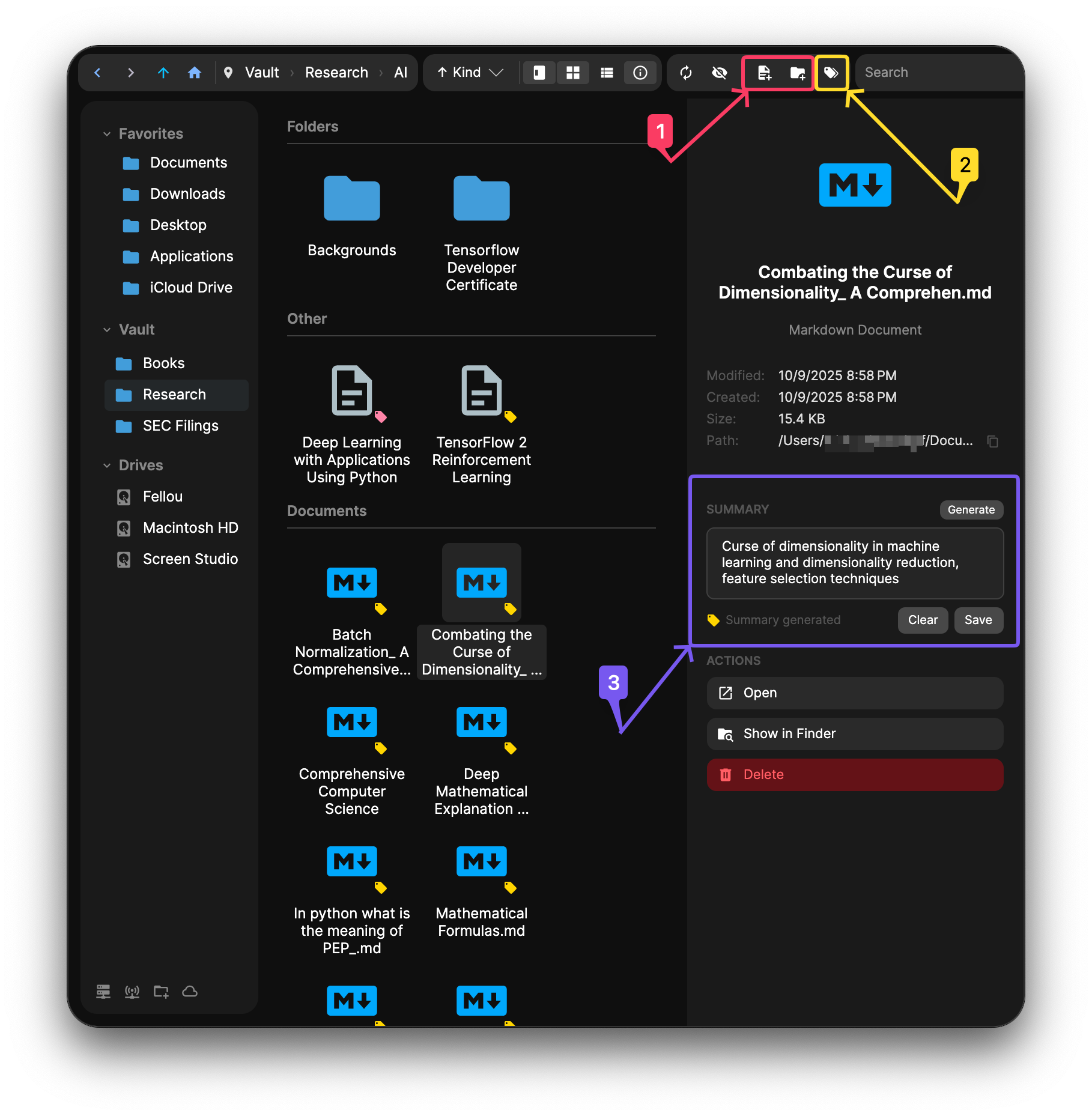
Importing Files 1
The highlighted import buttons (1) open a picker for adding files or whole folders into the current vault location. You do not have to use them though - the vault accepts files however you normally move them around your computer:
- Copy and paste with Cmd+C / Cmd+V (or Ctrl on Windows) from Finder, Explorer, or another vault folder.
- Right-click in the grid for a context menu with paste, new folder, and other actions.
- Drag and drop files or folders straight into the grid from any other application, or drag them out of the vault into another location.
Generate Summaries 2 3
The highlighted toolbar button (2) fills in missing AI summaries across the entire vault. If summary generation on import is enabled in Settings, newly imported files are summarized automatically, so most users only need this button when summaries were skipped, disabled, or missing. Summaries power semantic search and make the detail panel more informative.
For a single file, select it and use the Summary panel on the right (3). Click Generate to create a summary for just that file. You can also edit the summary text by hand and click Save to keep your own wording, or Clear to remove the summary entirely. Saved summaries are stored per file and used by search and chat.
Folder Sidebar
The left sidebar shows your folder hierarchy with pinned folders at the top for quick access. The Drives section lists mounted volumes so you can browse outside the vault root when you need to.
Document Details
Select a file to open the detail panel on the right. It shows the file type, size, modified and created dates, full path (with a copy button), and the AI-generated summary. The Actions group at the bottom lets you Open the file in its native application, Show in Finder, or Delete it.
Toolbar
The toolbar across the top of the vault holds navigation, view, and action controls. From left to right: back, forward, up, and home for moving through the folder tree; breadcrumbs showing your current path; a sort menu; grid, list, and column view toggles; an info-panel toggle; refresh; a hide-indexed filter; and the import and tag controls covered above. The search box on the right searches filenames and indexed content across the current folder.
You can also customize the toolbar. Use the toolbar options menu to hide buttons you do not use, add them back later, show all toolbar items, hide optional buttons, or reset the toolbar to its default layout. If you prefer the window controls in the toolbar, turn on Show Window Controls in Toolbar. The same window-control setting is also available from Settings.

Analytics
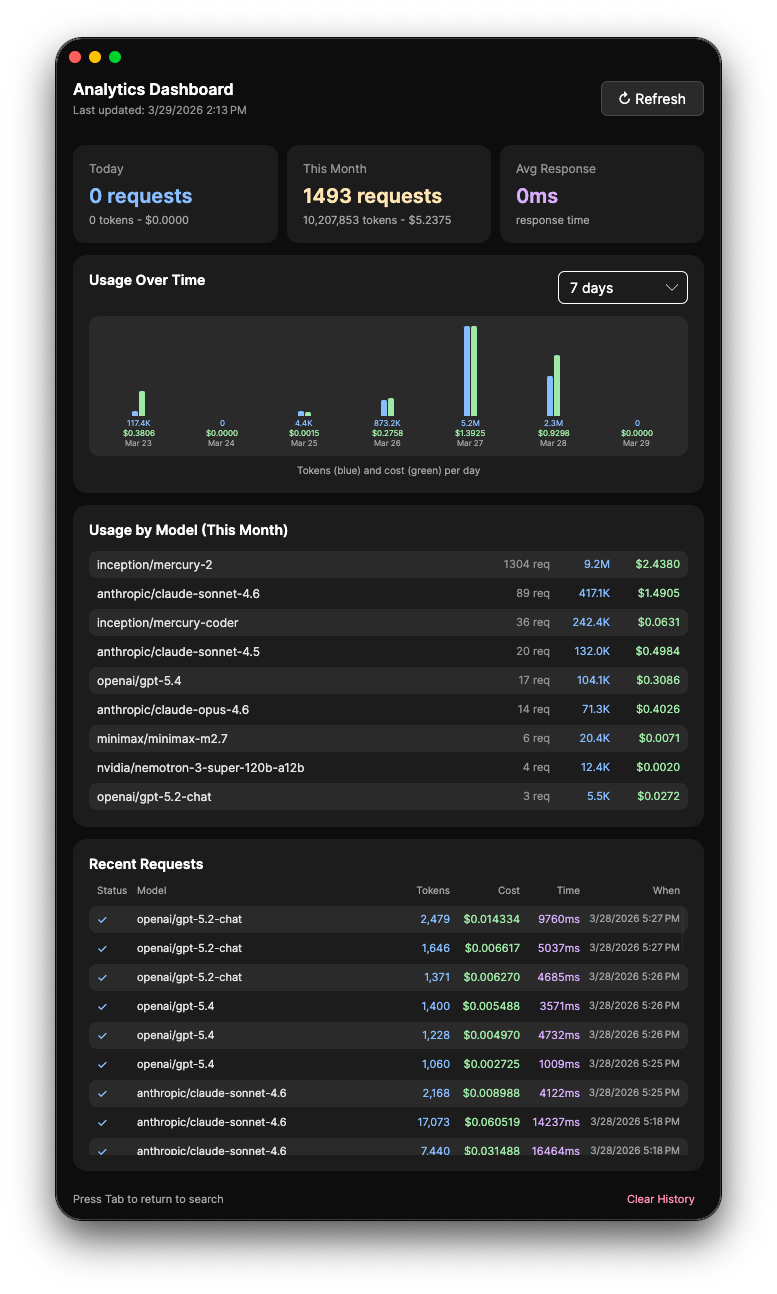
The Analytics dashboard tracks your AI usage so you always know what you are spending. Open it from the menu inside the app.
Today and This Month
Summary cards at the top show request counts, token usage, and cost for today and the current month at a glance.
Usage Over Time
A chart showing daily token usage and cost over a configurable time range (7 days, 30 days, etc.) so you can spot trends in your spending.
Usage by Model
A breakdown of every model you have used this month, showing request count, total tokens, and cost per model. Useful for understanding which models are driving your spending.
Recent Requests
A log of individual AI requests with the model used, token count, cost, response time, and timestamp. Filter by keyword to find specific requests.
Agent Usage
A separate section for the coding agents, computed from their local logs: estimated cost at API rates with a 30-day cost timeline, a per-backend donut, roll-ups by account, and token totals with cache savings. See Agent Usage Analytics.